TimeFieldNew
Time input field with labels, descriptions, and validation built on React Aria TimeField
Import
import { TimeField } from '@heroui/react';Usage
"use client";

import {DateInputGroup, Label, TimeField} from "@heroui/react";

export function Basic() {Anatomy
import {TimeField, Label, DateInputGroup, Description, FieldError} from '@heroui/react';

export default () => (
  <TimeField>
    <Label />
    <DateInputGroup>
      <DateInputGroup.Input>
        {(segment) => <DateInputGroup.Segment segment={segment} />}
      </DateInputGroup.Input>
    </DateInputGroup>
    <Description />
    <FieldError />
  </TimeField>
)
TimeField combines label, time input, description, and error into a single accessible component.
With Description
"use client";

import {DateInputGroup, Description, Label, TimeField} from "@heroui/react";

export function WithDescription() {Required Field
"use client";

import {DateInputGroup, Description, Label, TimeField} from "@heroui/react";

export function Required() {Validation
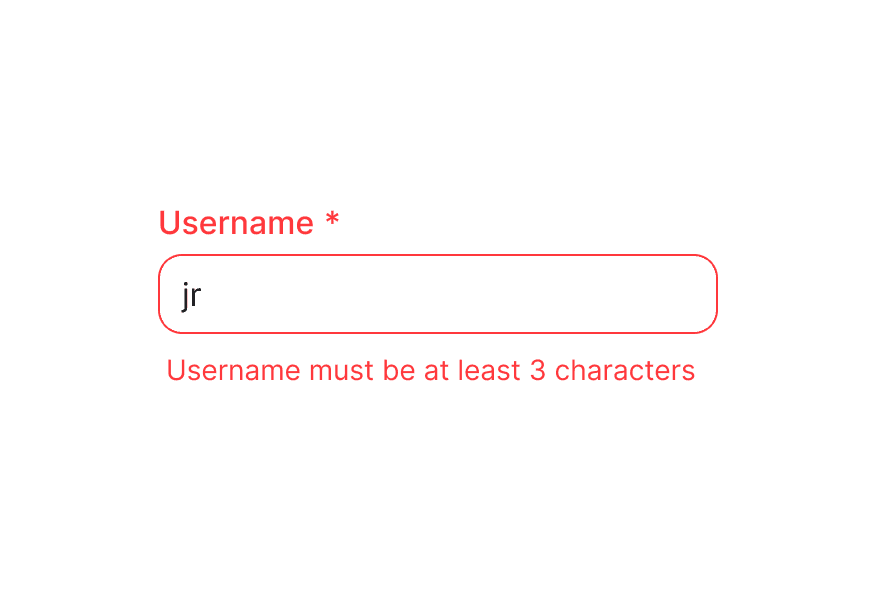
Use isInvalid together with FieldError to surface validation messages.
"use client";

import {DateInputGroup, FieldError, Label, TimeField} from "@heroui/react";

export function Invalid() {With Validation
TimeField supports validation with minValue, maxValue, and custom validation logic.
"use client";

import type {Time} from "@internationalized/date";

import {DateInputGroup, Description, FieldError, Label, TimeField} from "@heroui/react";Controlled
Control the value to synchronize with other components or state management.
"use client";

import type {TimeValue} from "@heroui/react";

import {Button, DateInputGroup, Description, Label, TimeField} from "@heroui/react";Disabled State
"use client";

import {DateInputGroup, Description, Label, TimeField} from "@heroui/react";
import {Time, getLocalTimeZone, now} from "@internationalized/date";
With Icons
Add prefix or suffix icons to enhance the time field.
"use client";

import {Clock} from "@gravity-ui/icons";
import {DateInputGroup, Label, TimeField} from "@heroui/react";
"use client";

import {Clock} from "@gravity-ui/icons";
import {DateInputGroup, Label, TimeField} from "@heroui/react";
"use client";

import {ChevronDown, Clock} from "@gravity-ui/icons";
import {DateInputGroup, Description, Label, TimeField} from "@heroui/react";
Full Width
"use client";

import {ChevronDown, Clock} from "@gravity-ui/icons";
import {DateInputGroup, Label, TimeField} from "@heroui/react";
On Surface
When used inside a Surface component, TimeField and its child DateInputGroup automatically apply on-surface styling.
"use client";

import {Clock} from "@gravity-ui/icons";
import {DateInputGroup, Description, Label, Surface, TimeField} from "@heroui/react";
Form Example
Complete form example with validation and submission handling.
"use client";

import type {Time} from "@internationalized/date";

import {Clock} from "@gravity-ui/icons";Styling
Passing Tailwind CSS classes
import {TimeField, Label, DateInputGroup, Description} from '@heroui/react';

function CustomTimeField() {
  return (
    <TimeField className="gap-2 rounded-xl border border-border/60 bg-surface p-4 shadow-sm">
      <Label className="text-sm font-semibold text-default-700">
        Appointment time
      </Label>
      <DateInputGroup className="rounded-lg border border-border/60 bg-surface px-3 py-2">
        <DateInputGroup.Input>
          {(segment) => <DateInputGroup.Segment segment={segment} />}
        </DateInputGroup.Input>
      </DateInputGroup>
      <Description className="text-xs text-default-500">
        Select a time for your appointment.
      </Description>
    </TimeField>
  );
}
Customizing the component classes
TimeField has minimal default styling. Override the .time-field class to customize the container styling.
@layer components {
  .time-field {
    @apply flex flex-col gap-1;

    &[data-invalid="true"],
    &[aria-invalid="true"] {
      [data-slot="description"] {
        @apply hidden;
      }
    }

    [data-slot="label"] {
      @apply w-fit;
    }

    [data-slot="description"] {
      @apply px-1;
    }
  }
}
CSS Classes
.time-field– Root container with minimal styling (flex flex-col gap-1)
Note: Child components (Label, Description, FieldError) have their own CSS classes and styling. See their respective documentation for customization options. DateInputGroup styling is documented below in the API Reference section.
Interactive States
TimeField automatically manages these data attributes based on its state:
- Invalid:
[data-invalid="true"]or[aria-invalid="true"]- Automatically hides the description slot when invalid - Required:
[data-required="true"]- Applied whenisRequiredis true - Disabled:
[data-disabled="true"]- Applied whenisDisabledis true - Focus Within:
[data-focus-within="true"]- Applied when any child input is focused
API Reference
TimeField Props
TimeField inherits all props from React Aria's TimeField component.
Base Props
| Prop | Type | Default | Description |
|---|---|---|---|
children | React.ReactNode | (values: TimeFieldRenderProps) => React.ReactNode | - | Child components (Label, DateInputGroup, etc.) or render function. |
className | string | (values: TimeFieldRenderProps) => string | - | CSS classes for styling, supports render props. |
style | React.CSSProperties | (values: TimeFieldRenderProps) => React.CSSProperties | - | Inline styles, supports render props. |
fullWidth | boolean | false | Whether the time field should take full width of its container |
id | string | - | The element's unique identifier. |
Value Props
| Prop | Type | Default | Description |
|---|---|---|---|
value | TimeValue | null | - | Current value (controlled). Uses @internationalized/date types. |
defaultValue | TimeValue | null | - | Default value (uncontrolled). Uses @internationalized/date types. |
onChange | (value: TimeValue | null) => void | - | Handler called when the value changes. |
placeholderValue | TimeValue | null | - | Placeholder time that influences the format of the placeholder. Defaults to 12:00 AM or 00:00 depending on the hour cycle. |
Validation Props
| Prop | Type | Default | Description |
|---|---|---|---|
isRequired | boolean | false | Whether user input is required before form submission. |
isInvalid | boolean | - | Whether the value is invalid. |
minValue | TimeValue | null | - | The minimum allowed time that a user may select. Uses @internationalized/date types. |
maxValue | TimeValue | null | - | The maximum allowed time that a user may select. Uses @internationalized/date types. |
validate | (value: TimeValue) => ValidationError | true | null | undefined | - | Custom validation function. |
validationBehavior | 'native' | 'aria' | 'native' | Whether to use native HTML form validation or ARIA attributes. |
Format Props
| Prop | Type | Default | Description |
|---|---|---|---|
granularity | 'hour' | 'minute' | 'second' | 'minute' | Determines the smallest unit displayed in the time picker. |
hourCycle | 12 | 24 | - | Whether to display time in 12 or 24 hour format. By default, determined by locale. |
hideTimeZone | boolean | false | Whether to hide the time zone abbreviation. |
shouldForceLeadingZeros | boolean | - | Whether to always show leading zeros in the hour field. By default, determined by locale. |
State Props
| Prop | Type | Default | Description |
|---|---|---|---|
isDisabled | boolean | - | Whether the input is disabled. |
isReadOnly | boolean | - | Whether the input can be selected but not changed. |
Form Props
| Prop | Type | Default | Description |
|---|---|---|---|
name | string | - | Name of the input element, for HTML form submission. Submits as ISO 8601 string. |
autoFocus | boolean | - | Whether the element should receive focus on render. |
Accessibility Props
| Prop | Type | Default | Description |
|---|---|---|---|
aria-label | string | - | Accessibility label when no visible label is present. |
aria-labelledby | string | - | ID of elements that label this field. |
aria-describedby | string | - | ID of elements that describe this field. |
aria-details | string | - | ID of elements with additional details. |
Composition Components
TimeField works with these separate components that should be imported and used directly:
- Label - Field label component from
@heroui/react - DateInputGroup - Date input component with segmented editing from
@heroui/react(documented below) - Description - Helper text component from
@heroui/react - FieldError - Validation error message from
@heroui/react
Each of these components has its own props API. Use them directly within TimeField for composition:
import {parseTime} from '@internationalized/date';
import {TimeField, Label, DateInputGroup, Description, FieldError} from '@heroui/react';

<TimeField
  isRequired
  isInvalid={hasError}
  minValue={parseTime('09:00')}
  maxValue={parseTime('17:00')}
  value={time}
  onChange={setTime}
>
  <Label>Appointment Time</Label>
  <DateInputGroup>
    <DateInputGroup.Input>
      {(segment) => <DateInputGroup.Segment segment={segment} />}
    </DateInputGroup.Input>
  </DateInputGroup>
  <Description>Select a time between 9:00 AM and 5:00 PM.</Description>
  <FieldError>Please select a valid time.</FieldError>
</TimeField>
TimeValue Types
TimeField uses types from @internationalized/date:
Time- Time only (hour, minute, second)CalendarDateTime- Date with time but no timezone (TimeField displays only the time portion)ZonedDateTime- Date with time and timezone (TimeField displays only the time portion)
Example:
import {parseTime, Time, getLocalTimeZone, now} from '@internationalized/date';

// Parse from string
const time = parseTime('14:30');

// Create from current time
const currentTime = now(getLocalTimeZone());
const timeValue = new Time(currentTime.hour, currentTime.minute, currentTime.second);

// Use in TimeField
<TimeField value={time} onChange={setTime}>
  {/* ... */}
</TimeField>
Note: TimeField uses the
@internationalized/datepackage for time manipulation, parsing, and type definitions. See the Internationalized Date documentation for more information about available types and functions.
TimeFieldRenderProps
When using render props with className, style, or children, these values are available:
| Prop | Type | Description |
|---|---|---|
isDisabled | boolean | Whether the field is disabled. |
isInvalid | boolean | Whether the field is currently invalid. |
isReadOnly | boolean | Whether the field is read-only. |
isRequired | boolean | Whether the field is required. |
isFocused | boolean | Whether the field is currently focused. |
isFocusWithin | boolean | Whether any child element is focused. |
isFocusVisible | boolean | Whether focus is visible (keyboard navigation). |
DateInputGroup Props
DateInputGroup accepts all props from React Aria's Group component plus the following:
| Prop | Type | Default | Description |
|---|---|---|---|
className | string | - | Tailwind classes merged with the component styles. |
isOnSurface | boolean | false | Whether the input is displayed on a surface (affects styling) |
DateInputGroup.Input Props
DateInputGroup.Input accepts all props from React Aria's DateInput component plus the following:
| Prop | Type | Default | Description |
|---|---|---|---|
className | string | - | Tailwind classes merged with the component styles. |
isOnSurface | boolean | false | Whether the input is displayed on a surface (affects styling) |
The DateInput component accepts a render prop function that receives date segments. Each segment represents a part of the time (hour, minute, second, etc.).
DateInputGroup.Segment Props
DateInputGroup.Segment accepts all props from React Aria's DateSegment component:
| Prop | Type | Default | Description |
|---|---|---|---|
segment | DateSegment | - | The date segment object from the DateInput render prop. |
className | string | - | Tailwind classes merged with the component styles. |
DateInputGroup.Prefix Props
DateInputGroup.Prefix accepts standard HTML div attributes:
| Prop | Type | Default | Description |
|---|---|---|---|
className | string | - | Tailwind classes merged with the component styles. |
children | ReactNode | - | Content to display in the prefix slot. |
DateInputGroup.Suffix Props
DateInputGroup.Suffix accepts standard HTML div attributes:
| Prop | Type | Default | Description |
|---|---|---|---|
className | string | - | Tailwind classes merged with the component styles. |
children | ReactNode | - | Content to display in the suffix slot. |
DateInputGroup Styling
Customizing the component classes
The base classes power every instance. Override them once with @layer components.
@layer components {
  .date-input-group {
    @apply inline-flex h-9 items-center overflow-hidden rounded-field border bg-field text-sm text-field-foreground shadow-field outline-none;

    &:hover,
    &[data-hovered="true"] {
      @apply bg-field-hover;
    }

    &[data-focus-within="true"],
    &:focus-within {
      @apply status-focused-field;
    }

    &[data-invalid="true"] {
      @apply status-invalid-field;
    }

    &[data-disabled="true"],
    &[aria-disabled="true"] {
      @apply status-disabled;
    }
  }

  .date-input-group__input {
    @apply flex flex-1 items-center gap-px rounded-none border-0 bg-transparent px-3 py-2 shadow-none outline-none;
  }

  .date-input-group__segment {
    @apply inline-block rounded-md px-0.5 text-end tabular-nums outline-none;

    &:focus,
    &[data-focused="true"] {
      @apply bg-accent-soft text-accent-soft-foreground;
    }
  }

  .date-input-group__prefix,
  .date-input-group__suffix {
    @apply pointer-events-none shrink-0 text-field-placeholder flex items-center;
  }
}
DateInputGroup CSS Classes
.date-input-group– Root container styling.date-input-group__input– Input wrapper styling.date-input-group__segment– Individual date segment styling.date-input-group__prefix– Prefix element styling.date-input-group__suffix– Suffix element styling
DateInputGroup Interactive States
- Hover:
:hoveror[data-hovered="true"] - Focus Within:
[data-focus-within="true"]or:focus-within - Invalid:
[data-invalid="true"](also syncs witharia-invalid) - Disabled:
[data-disabled="true"]or[aria-disabled="true"] - Segment Focus:
:focusor[data-focused="true"]on segment elements - Segment Placeholder:
[data-placeholder="true"]on segment elements